Add a team member
Bring colleagues into your BucketBill organisation and give each the right level of access, from a full admin to a free read-only accountant.
Invite someone
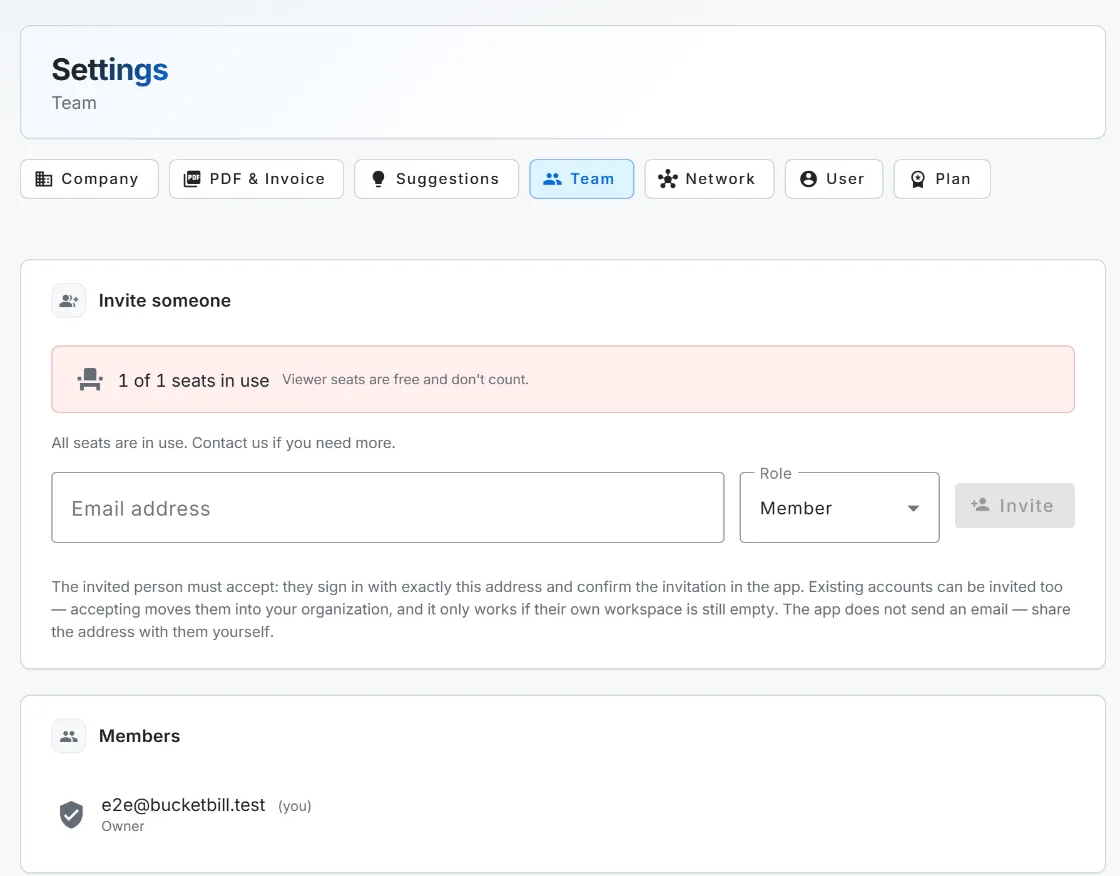
- Open Settings and go to the Team tab.
- Enter the person’s email and choose a role: admin, member or viewer.
- Create the invite. No email is sent, so share the invite with the person directly.
- They sign in, or sign up, with that exact email and accept.
The roles
- Owner: you. Runs the subscription and can hand over ownership. One per organisation.
- Admin: manages the team and settings, and can invite people.
- Member: creates invoices and works day to day.
- Viewer: read-only, ideal for an accountant. Viewer seats are free and don’t count against your team size.
Seats and plans
Team seats come with the Business plan: up to five people, counting you. A free read-only viewer can be added from the Solo plan up, and viewers never count towards that five. Only the owner can grant the admin role.
Switching to a plan with fewer seats is refused while your team is too big. BucketBill never removes anyone for you, so to move from Business down to Pro or Solo, take the extra people off the Team tab first, then change the plan.
Does BucketBill email the invite for me?
No. Creating an invite does not send an email; you pass it to the person yourself. They must use the exact email address you invited.
What is a viewer?
A read-only seat, ideal for an accountant. Viewer seats are free and do not count against your team size.
What happens to my team if I downgrade?
Nothing is removed automatically, and that is why the downgrade itself is refused while your team is larger than the new plan allows. Take the extra people off the Team tab first, then switch plans. Read-only viewers do not count.